Instructor Mode Gives Instructors Special Access to Vetted Training in Commercial Properties
One of the beauties of the FM Fire Service Learning Network is that its free online training modules are self-paced. You complete them in your own time wherever and whenever it’s convenient for you. But did you know that isn’t the only way to take the training? The Network has a special feature just for instructors and training officers that enables them to use the modules when they teach a class.
If you teach firefighters, you can use Instructor Mode play the videos in FM Fire Service Learning Network modules as part of your instruction delivery. When activated, the Instructor Mode allows the instructor to freely move about the program to show sections to students in class. These videos can introduce a topic, teach a concept, illustrate a process, deliver a case study, or spark discussion. The Knowledge Checks provide opportunities to discuss the content as a class and reason through the answers. And you’ll have confidence that the content is expert-vetted and the presentation has high production value because it’s backed by FM’s experience and resources. After you teach the material from the module, you can authorize your students to skip the requirement to watch all the videos (because you’ve already shown them in class) and proceed directly to the test to earn their Certificate of Completion for the module.
Here’s how it works.
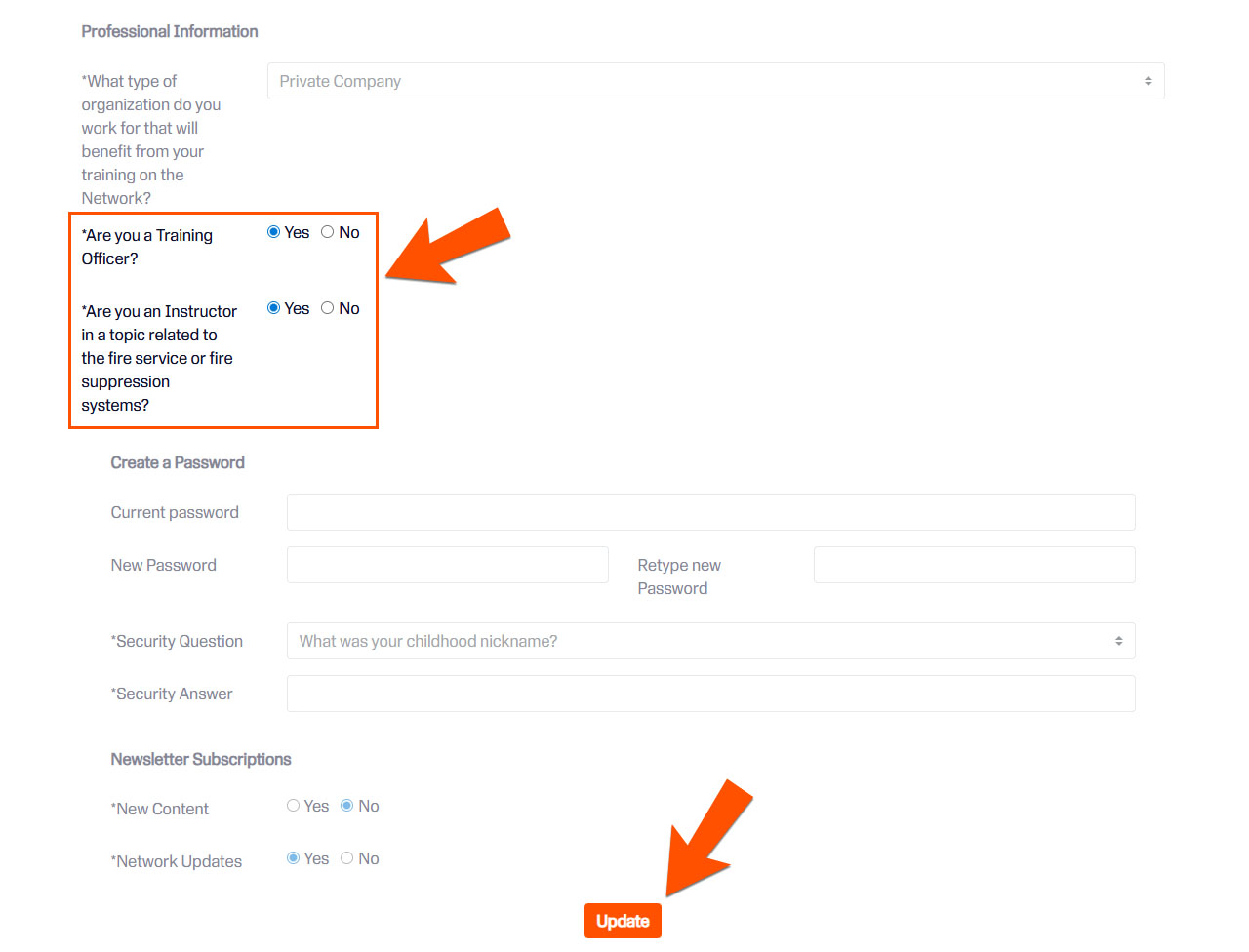
1: Gain access to Instructor Mode. Log into the FM Fire Service Learning Network. Click Edit Profile in the User Dashboard. Scroll down to the Professional Information section and select YES for either the Training Officer or Instructor questions. Then click the Update Profile button at the bottom of the page.
2: Complete a module. Watch all the module’s sections and pass the Skills Challenge test. You must complete a module to use Instructor Mode with it.
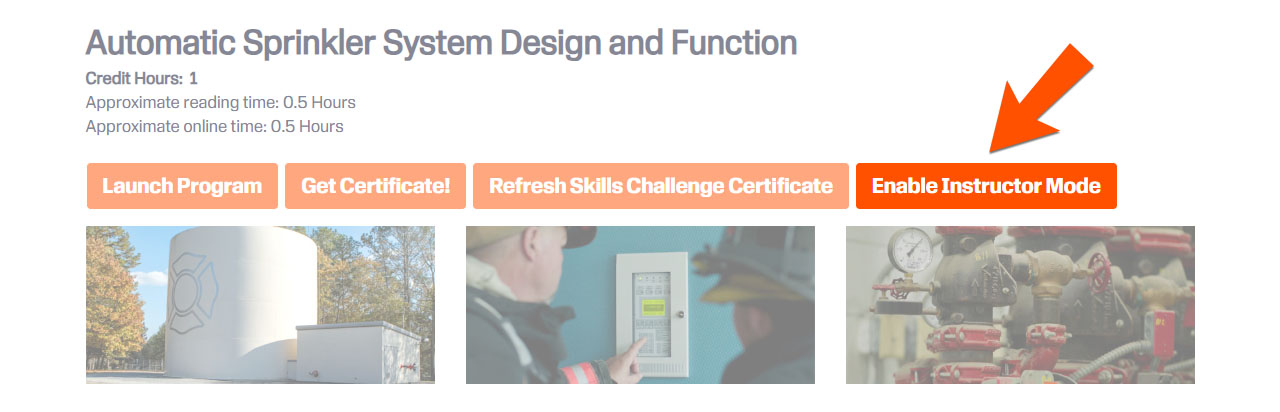
3: Activate Instructor Mode for that module. Click “Enable Instructor Mode” on the module’s Program Details page.
4: Use the module with your class. Integrate the module’s videos into your lesson plan and class activities then deliver the content to your class.
5: Authorize your students to take the Skills Challenge for that module. On the module interface with Instructor Mode activated, click Instructor Features.
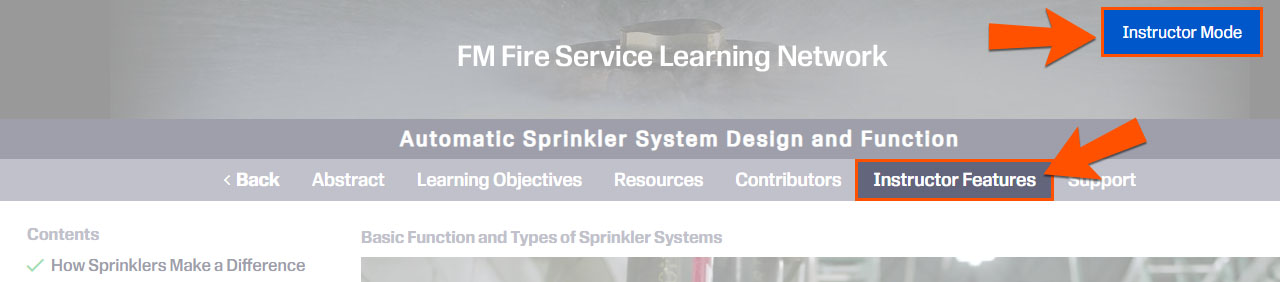
Enter the students’ email addresses into the form field on the Instructor Features page or upload a properly formatted Excel (.xlsx) list of class attendees' email addresses.
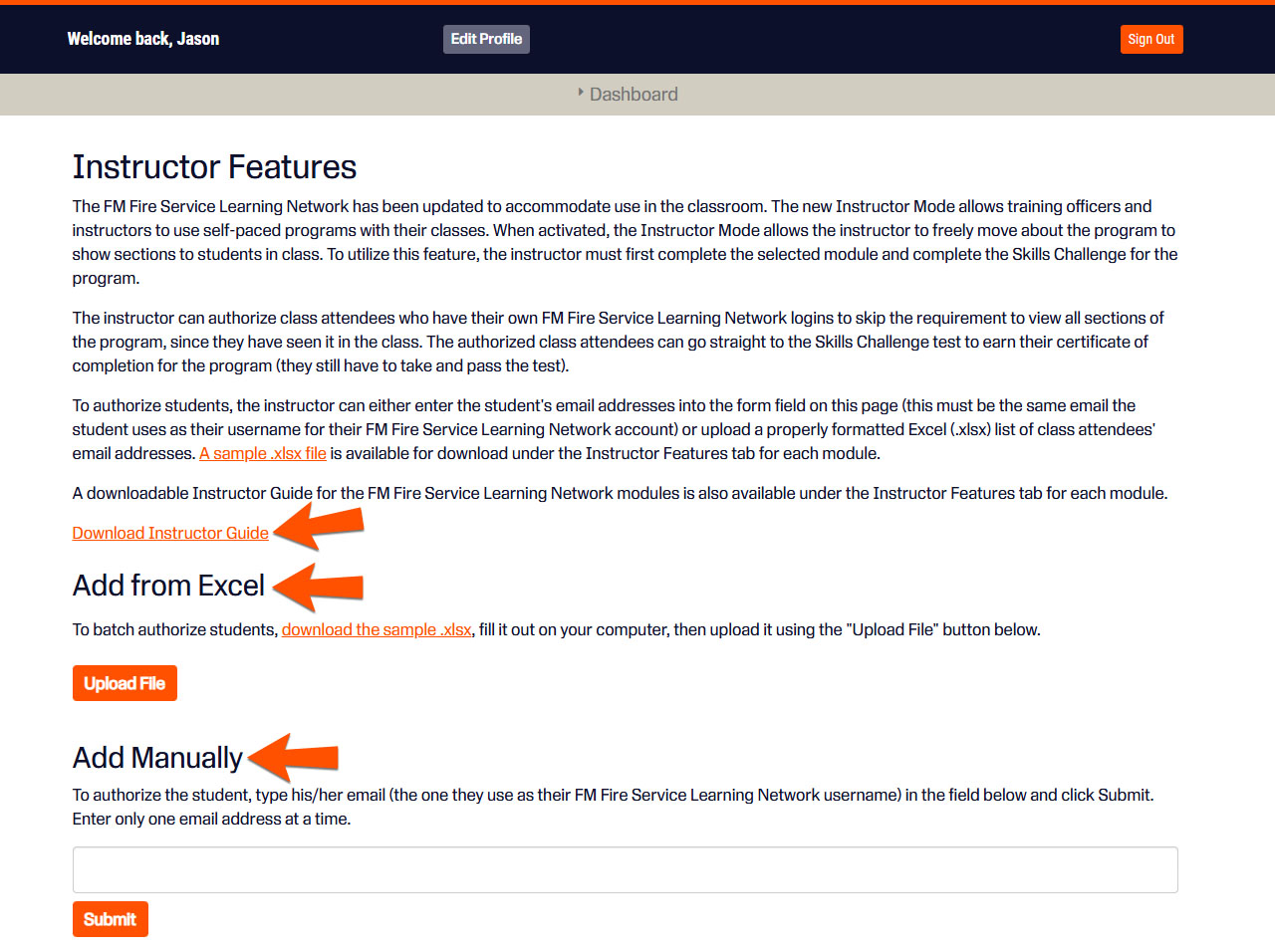
6: Monitor your students’ progress. The authorized class attendees go straight to the Skills Challenge test to earn their certificate of completion for the program when the test is passed. The Instructor Features page shows you a status update for reach authorized student so you can see their progress.
For detailed instructions on how to use Instructor Mode, read the Instructor Mode Guide.
If you are an instructor or training officer, it’s easy to get started with Instructor Mode. Go to your User Profile to start the process!
News Archive